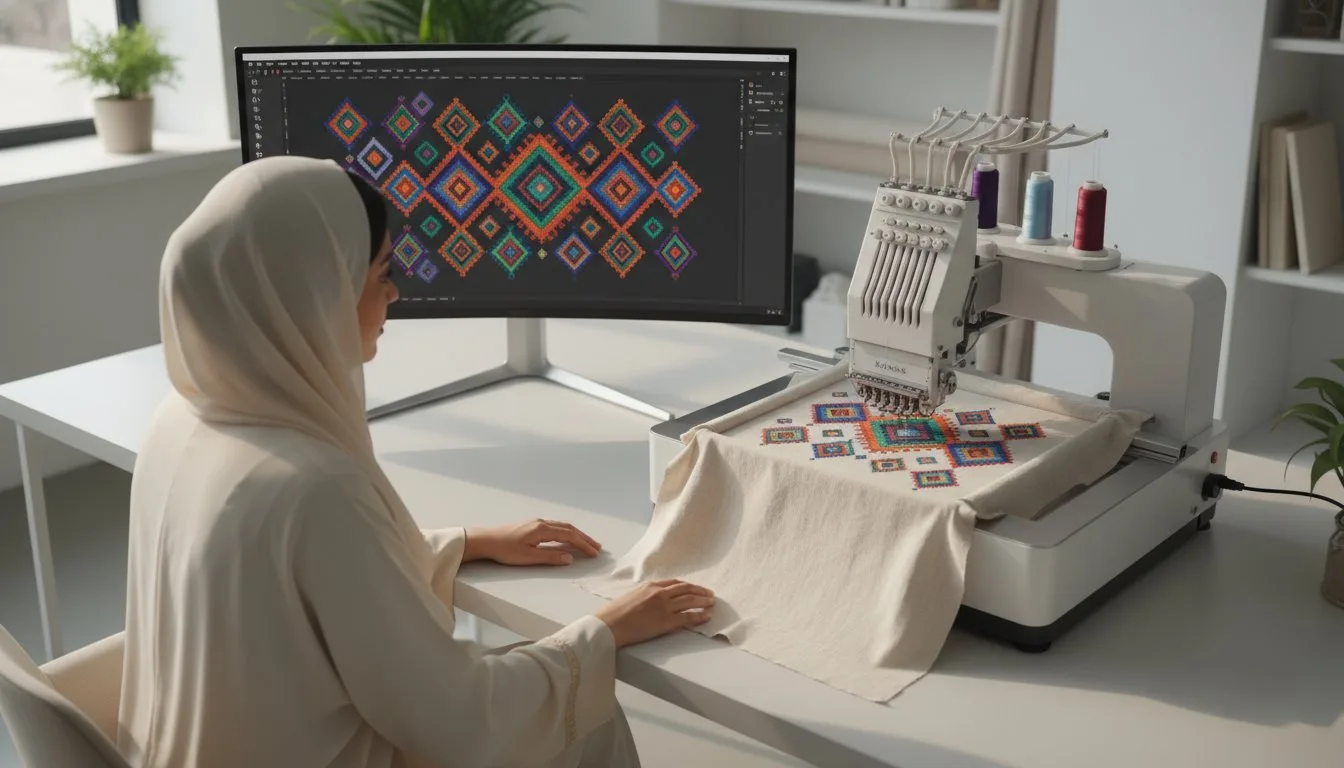
Have you ever found the perfect embroidery design, only to pause before clicking "buy," riddled with uncertainty? The confusing alphabet soup of file types-PES, DST, JEF-can make you worry if the design is even compatible with your machine. That fear of wasting money on a file that won't work or will stitch out poorly can quickly take the joy out of your creative passion. If you own a Brother, Babylock, or Bernina machine, consider that confusion a thing of the past. You are in exactly the right place to master the world of pes format embroidery designs and unlock a universe of creative potential.
This ultimate guide for 2025 is your personal roadmap to embroidery success. We will walk you through everything you need to know, from what the PES format is to how to confidently find, download, and transfer thousands of beautiful, high-quality designs. By the end of this article, you’ll feel empowered to select the perfect files for your machine and create stunning, professional-looking projects without any of the technical guesswork. Let's get you stitching with confidence!
## What Is a PES Embroidery File? A Beginner's Explanation
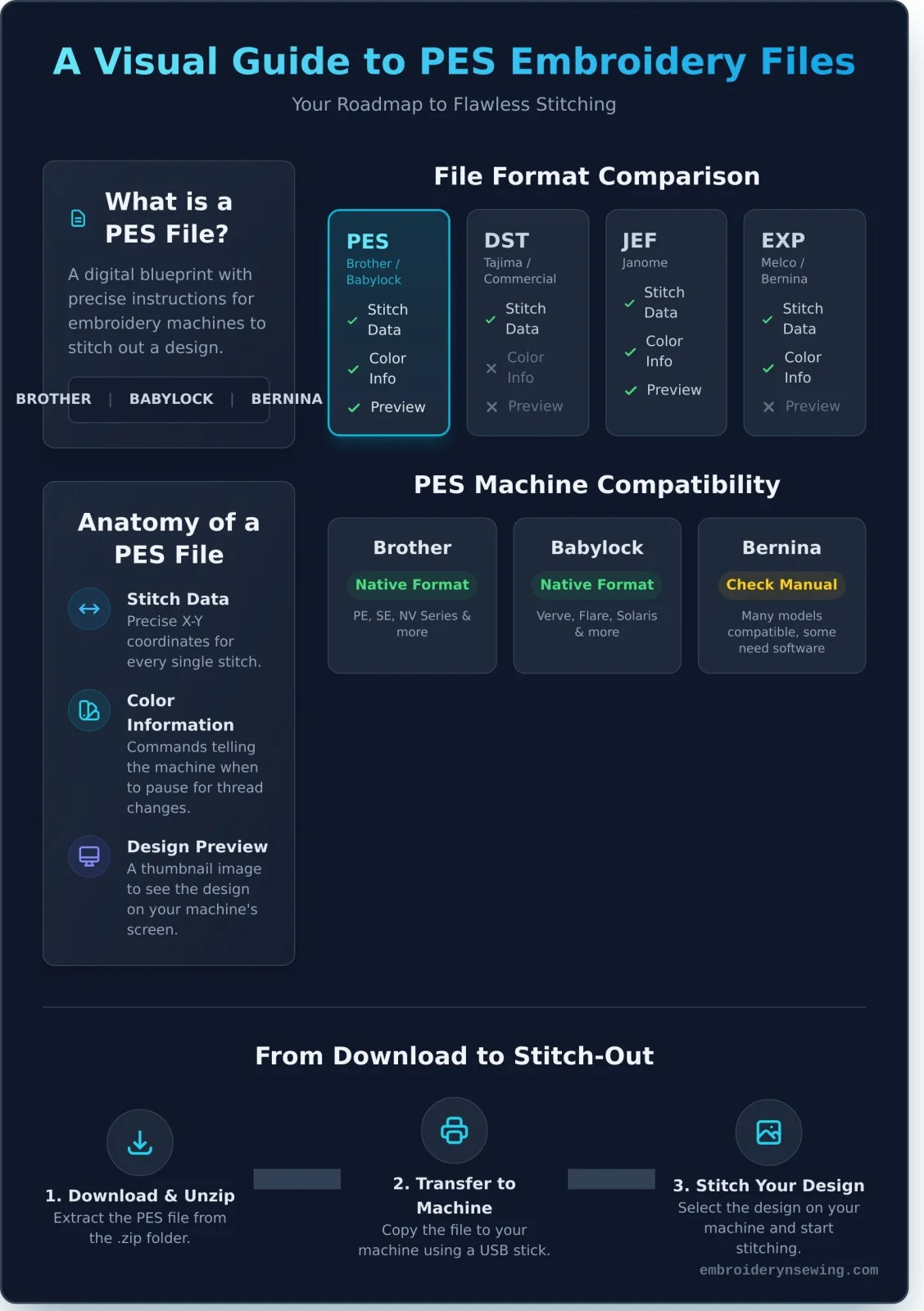
If you've just started your machine embroidery journey, you've likely encountered the term "PES file." Simply put, a PES file is a specific type of computer file that contains all the necessary instructions for an embroidery machine to stitch out a design. Think of it as the digital blueprint for your project.
Originally developed by Brother for their popular line of home embroidery machines, the PES format has become a standard for many hobbyists. It's the native format not only for Brother but also for many Babylock and Bernina machine models. Using the correct file format is the first and most critical step to ensuring your beautiful pes format embroidery designs translate perfectly from screen to fabric.
A PES file is more than just a picture; it's a precise set of commands. Inside, it contains the core stitch data as a series of X-Y coordinates, telling the machine's needle exactly where to move for every single stitch. These designs are meticulously crafted using specialized software, which functions much like Computer-aided design (CAD) systems, to plot each point. The file also includes commands for thread color changes, telling the machine when to pause so you can switch colors. Finally, it stores a small image preview (a thumbnail) so you can see the design on your machine's screen before you begin. It's worth noting there are different versions of the PES format; newer machines can typically read older versions, but not always the other way around.
PES vs. Other Common Formats (DST, JEF, EXP)
While exploring the world of pes format embroidery designs, you'll see other file extensions. Understanding the difference is key to avoiding frustration. Here’s a quick comparison:
- DST (Tajima): A very common commercial format. It's a "stitch-only" file, meaning it primarily contains stitch coordinates but often lacks detailed color information and thumbnails found in PES files.
- JEF (Janome): This is the native format for Janome embroidery machines, serving the same purpose for them as PES does for Brother.
- EXP (Melco/Bernina): Another popular commercial format used widely by Melco and some Bernina machines. It's known for its scalability and precision in professional settings.
For users of Brother, Babylock, or compatible Bernina machines, focusing on the PES format ensures you get all the design information-including colors and previews-that the digitizer intended.
Which Embroidery Machines Use the PES Format?
When you start collecting pes format embroidery designs, the first and most important question is whether your machine can read them. The PES (Packet Embroidery Stitch) file is a native format, meaning it was developed by a specific manufacturer for its machines. Using a design in its native format ensures that every stitch, trim, and color change is interpreted exactly as the digitizer intended, resulting in the highest possible stitch quality.
The PES format contains precise stitch data, color information, and specific machine commands. For those interested in the specifics, the University of Geneva provides a detailed technical breakdown of the PES format, explaining how this data is structured for optimal performance. This direct communication between the design file and the machine is why sticking to the native format is always recommended.
Brother Machines: The Home of PES
The PES format is the native embroidery file type for Brother home embroidery machines. These machines are engineered from the ground up to read and execute PES files flawlessly. This perfect pairing eliminates guesswork and ensures your final project looks professional. Popular Brother series that use the PES format include:
- PE Series: Such as the PE800, PE900, and the new PE550D.
- SE Series: Combination sewing and embroidery machines like the SE1900 and SE625.
- NV (Innov-is) Series: High-end models like the NQ1700E and the Luminaire XP series.
At our studio, we test all our designs on Brother machines to guarantee perfect stitch-outs. Transferring files is also incredibly simple, usually involving just a USB stick to move your downloaded pes format embroidery designs directly to your machine.
Babylock and Bernina Compatibility
While Brother is the primary manufacturer for PES, you'll find excellent compatibility with other leading brands. Most home embroidery machines from Babylock also use the PES format as their native file type. This includes popular models like the Babylock Verve, Flare, and many in the Solaris and Altair lines.
Many modern Bernina embroidery machines are designed to read multiple formats, including PES. However, compatibility can vary by model and age. Some older Bernina machines might require the use of Bernina ArtLink or other converter software to read a PES file correctly. Because of this variability, it's crucial to consult your machine's documentation. Always check your user manual or the manufacturer’s website to confirm which file formats your specific model supports before making a purchase.
How to Use PES Embroidery Designs: From Download to Stitch-Out
You’ve found the perfect design, and now you’re ready to bring it to life. Getting a digital file from your computer to your embroidery machine can feel intimidating, but it’s a straightforward process. This guide will walk you through every step, turning that digital download into a beautifully stitched creation.
Step 1: Downloading and Unzipping Your Files
Most pes format embroidery designs you purchase or download will arrive in a single, compressed file called a .zip file. This keeps all the related files neatly bundled together. Your first task is to "unzip" or "extract" this folder.
- On Windows: Right-click the .zip file and select "Extract All..." then follow the on-screen prompts.
- On Mac: Simply double-click the .zip file, and it will automatically create a new, unzipped folder nearby.
Inside the new folder, you'll likely see several file types (like .DST, .EXP, etc.) and perhaps a PDF color chart. Your goal is to find the file that ends in .pes. This specific file contains all the stitch instructions your machine needs. For those curious about the file's inner workings, you can explore the Technical PES format details, but for now, just know that the .pes file is your key to success.
Step 2: Transferring the PES File to a USB Stick
The most common way to move a design to your machine is with a USB flash drive. For best results, use a clean, formatted USB stick that is 16GB or smaller, as some older machines struggle with larger drives.
Once your USB is plugged into your computer, open the unzipped design folder. Click and drag the single .pes file over to the USB drive icon and release it. Alternatively, you can right-click the .pes file, select "Copy," then navigate to your USB drive, right-click again, and select "Paste."
Important: Only transfer the .pes file, not the original .zip file or the entire folder. To stay organized, you can create folders on your USB drive (e.g., "Flowers," "Holidays," "Kids") to sort your designs.
With the .pes file on your USB stick, you're ready for the final step. Turn on your embroidery machine and wait for it to boot up completely before inserting the USB drive into the designated port. On your machine’s LCD screen, navigate to the design retrieval menu-look for an icon that resembles a USB stick or a pocket folder.
Select that icon to view the contents of your USB drive. If you made folders, open the correct one. Tap on your desired PES design, and it should load onto the screen, showing you a preview. Now, all that's left is to hoop your fabric, attach the hoop to the machine, and get ready to watch your design stitch out!
Pro Tips for Perfect Results with PES Designs
Once you've mastered the basics of loading a file and hooping your fabric, it's time to explore the details that separate good embroidery from great embroidery. Achieving a flawless stitch-out involves more than just your machine; the quality of the digital file and your material choices are critical. These expert tips will help you get professional-grade results every time you work with pes format embroidery designs.
Why High-Quality Digitizing Matters
A PES file is essentially a set of digital instructions telling your machine where to place each stitch. The quality of that final product is determined long before you thread your needle-it's set by the skill of the digitizer. Poorly digitized designs can cause frustration and waste materials. Signs of low-quality digitizing include:
- Gaps between filled sections and their satin-stitch borders.
- Stitch density that is either too thick (causing puckering and needle breaks) or too thin (allowing fabric to show through).
- Inefficient stitch paths with excessive, messy jump stitches.
We ensure every design is meticulously crafted by experts for a smooth, beautiful stitch-out. Browse our professionally digitized PES designs and see the difference quality makes.
The Dangers of Resizing PES Files
It's tempting to scale a design on your machine's screen to fit a different hoop, but this is a common mistake. Simply resizing a PES file stretches or shrinks the existing stitch locations without recalculating the stitch count or density. Enlarging a design by more than 10-20% can create unsightly gaps, while shrinking it can result in a dense, stiff, and thread-breaking mess. For perfect results, always use a design that was digitized for the specific size you need.
Choosing Stabilizers and Thread
The right foundation is everything. A stabilizer is a non-negotiable material that supports your fabric, preventing it from stretching or puckering under the tension of the stitches. Always match your stabilizer to your fabric type. A good rule of thumb is to use a cut-away stabilizer for stretchy knit fabrics (like t-shirts) and a tear-away stabilizer for stable woven fabrics (like denim or quilting cotton).
Finally, don't feel locked into the colors you see on your screen! The thread colors embedded in pes format embroidery designs are just suggestions. Your machine simply follows the stitch data; it doesn't know what color thread you've loaded. Feel free to unleash your creativity and choose a color palette that perfectly matches your project.
Explore Thousands of High-Quality PES Embroidery Designs
Now that you understand the power and versatility of the PES format, it’s time for the most exciting part: bringing your creative ideas to life! A great project starts with a great design. We offer a vast, professionally digitized library of pes format embroidery designs, meticulously crafted to ensure flawless stitch-outs and vibrant results on your Brother, Baby Lock, or Deco machine.
Whether you're starting a new hobby, running a small business, or searching for the perfect gift, our collection is your ultimate creative resource. Let's explore what you can find.
Popular Categories: Sports, Cartoons, and More
Dive into a world of endless possibilities with designs for every passion and occasion. Our curated categories make it easy to find exactly what you need. From intricate floral patterns that add elegance to home decor to playful animals perfect for a child's blanket, our library is constantly growing.
- Sports Logos: Show your team spirit with officially licensed and inspired designs.
- Seasonal & Holiday: Find the perfect touch for Christmas stockings, Halloween treat bags, and Easter baskets.
- Characters & Kids: Stitch out beloved characters that bring smiles to everyone's faces.
Ready to get inspired? Find your next project in our cartoon collection and explore hundreds of other popular themes.
Customizable Embroidery Fonts in PES Format
Nothing makes a project more special than a personal touch. Our collection of embroidery fonts gives you the power to add names, monograms, quotes, and custom messages to any fabric item. Transform a simple towel into a luxurious wedding gift or label a backpack with a child's name in a style they’ll love. We offer a range of styles to match your project's aesthetic, from elegant script and classic block letters to fun and modern typefaces.
Personalize your gifts with our PES fonts and make every creation uniquely yours.
Designs for Every Hoop Size
We know that embroidery machines come with different capabilities, especially when it comes to hoop size. That’s why our collection includes designs tailored for all common hoop dimensions, including the popular 4x4 and 5x7 inch sizes. You'll never have to worry about falling in love with a design that won't fit your machine.
Each design listing clearly specifies the required hoop size and exact dimensions, so you can purchase with confidence. Use our website's search filters to easily browse high-quality pes format embroidery designs that are a perfect match for your equipment. Your perfect project is just a click away at embroiderynsewing.com.
Your Next Masterpiece Awaits: Stitching with PES
You now have a solid foundation for your embroidery journey. We've demystified what a PES file is, confirmed its compatibility with leading machines like Brother and Babylock, and walked through the essential steps to bring a digital file to fabric. This knowledge empowers you to tackle any project with confidence and achieve professional-looking results.
When you start with a superior pattern, you set yourself up for a rewarding experience. Choosing high-quality pes format embroidery designs is the most important step toward a smooth, flawless stitch-out. If you're ready to find that perfect design, your search ends here. Our extensive library features thousands of professionally digitized designs, meticulously tested for quality.
Every purchase includes an instant download with all major file types, so you can get stitching immediately. Shop our entire collection of PES-compatible embroidery designs now! Unleash your creativity and turn your vision into a beautiful, tangible masterpiece.
Frequently Asked Questions
Can I convert other embroidery file types (like JEF or DST) to PES?
Yes, you can convert other file formats to PES using dedicated embroidery software. Programs like Embrilliance, Hatch, and SewWhat-Pro allow you to open a file like JEF or DST and save it as a PES file. While free online converters exist, using proper software is recommended as it recalculates the stitch data more accurately for the new format, ensuring a higher quality stitch-out on your Brother, Babylock, or Bernina machine.
What software can I use to open and view PES files on my computer?
Several programs allow you to view PES files. For free options, consider Embrilliance Express, Bernina ArtLink, or Wilcom TrueSizer, which let you view, print, and sometimes perform minor conversions. For more advanced features like editing, resizing, and merging designs, paid software such as Hatch Embroidery or the full Embrilliance suite are excellent choices. These tools give you a complete picture of the design's stitch information before you begin embroidering.
Are all PES files the same quality?
No, the quality of pes format embroidery designs varies greatly. The final quality is determined by the skill of the digitizer who created the file, not the format itself. A professional digitizer carefully plans stitch types, density, underlay, and pathing to prevent gaps and puckering. A poorly digitized file will stitch out poorly, regardless of the format, while a high-quality file will produce a clean, beautiful result. Always check seller reviews when possible.
Why isn't my embroidery machine reading my PES file from the USB stick?
There are a few common reasons for this issue. First, ensure your USB stick is formatted correctly; many machines require the FAT32 format. Second, some machines can only read files saved in the main (root) directory, not in folders. Another possibility is that the design is larger than your machine's maximum hoop size. Lastly, the file may have been corrupted during download or transfer, so try downloading and saving it to the USB again.
Do I need to buy special software to use PES embroidery designs?
No, you do not need to purchase special software just to stitch a purchased PES design. If the file is already the correct size for your hoop, you can transfer it directly from your computer to your machine with a USB stick or cable and start stitching. Software only becomes necessary when you want to edit, resize, combine, or add lettering to existing designs. For basic use, your embroidery machine is all you need.
How do I know what size the final stitched design will be?
The design's dimensions are typically provided in multiple places. The seller will list the exact size on the product page where you purchase it. After downloading, you will often find an information sheet (a PDF or image file) that details the dimensions, stitch count, and color changes. You can also open the file in any embroidery viewer to check its size. Finally, your machine’s screen will display the design's height and width before you stitch.