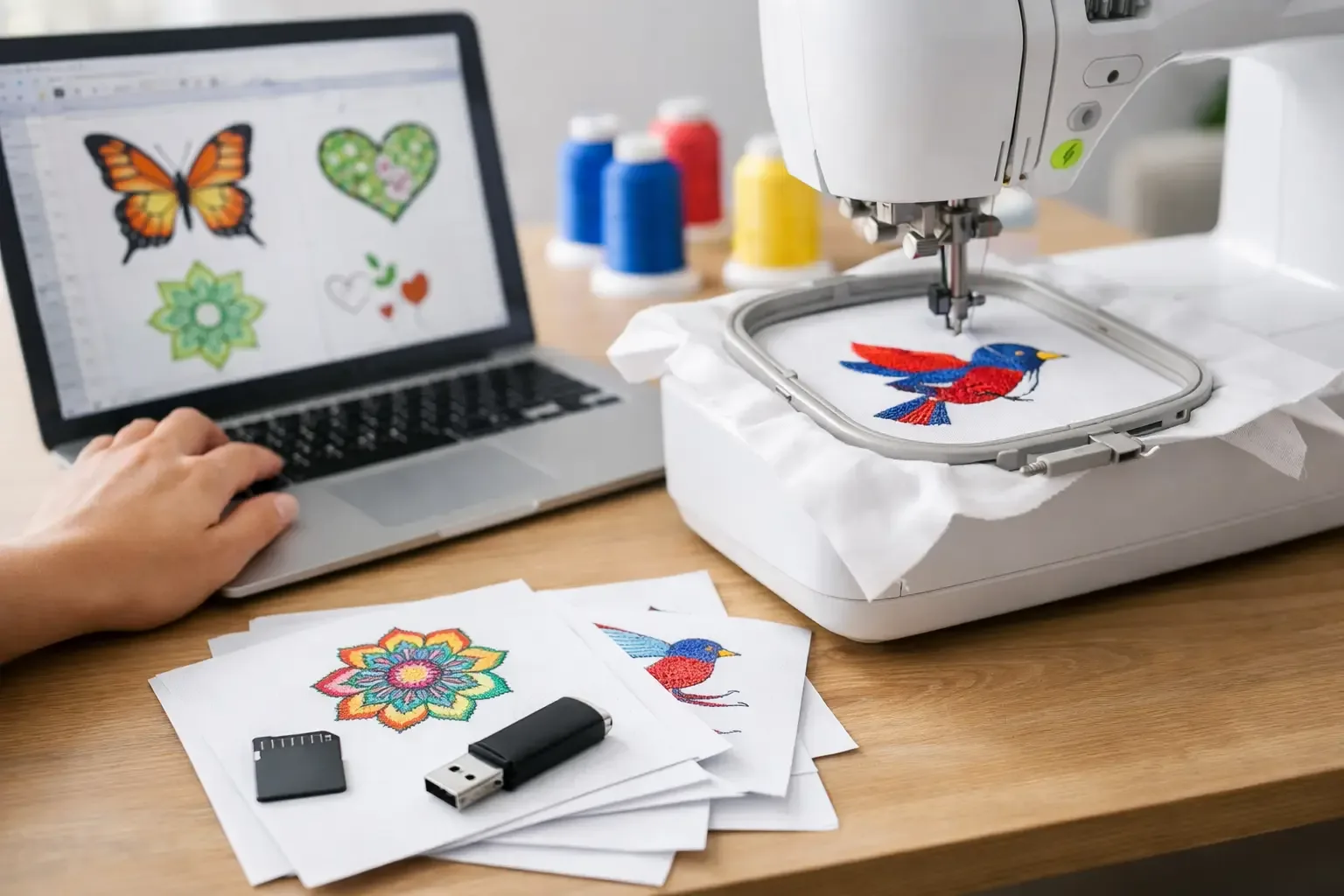
A great embroidery design can still become a frustrating project if the file does not match your machine. Before you buy an instant download, take a minute to choose embroidery file format based on the machine you own, the hoop you plan to use, and the way you move files to your machine. That small check prevents error messages, wasted stabilizer, and a design that is ready to stitch everywhere except your embroidery machine.
For home embroiderers, craft sellers, and boutique makers, the right format is usually not about finding the "best" file overall. It is about finding the file your particular machine can read without conversion. Once you know what to look for, shopping for sports, anime, florals, kids' designs, fonts, and gift-ready motifs becomes much faster.
## Choose Embroidery File Format by Machine Brand
Embroidery file formats are the stitch instructions that tell a machine where to move, when to change color, and how to form each part of a design. Different manufacturers use different formats, so a Brother or Baby Lock machine does not necessarily read the same file as a Janome, Husqvarna Viking, or Bernina machine.
The format your machine accepts should always be the first filter. Your owner's manual is the most reliable source, and many machines also show compatible formats directly on the screen or in their USB instructions. If you have purchased a used machine, search the exact model number in the manual rather than relying only on the brand name. Format support can vary between models from the same manufacturer. These are some of the formats you will see most often when shopping for ready-to-stitch designs:
- PES is widely used by Brother and Baby Lock embroidery machines. - DST is a common commercial-style format and works with many machines, although it may not carry complete color information.
- JEF is associated with Janome machines.
- VP3 is commonly used by Husqvarna Viking and Pfaff machines.
- EXP is frequently used for Bernina machines.
- HUS is found on certain Husqvarna Viking models.
- XXX is used by many Singer embroidery machines.
Machine compatibility is more specific than a brand label. For example, a file sold in PES may work beautifully on one Brother model, while an older model may have limits on file size, USB reading, or hoop availability. Verify your manual before purchasing if you are unsure.
## The Format Is Not the Design Size
A common mix-up is treating file format and embroidery size as the same thing. They are separate details. A PES file can be created for a 4x4 hoop, a 5x7 hoop, or a larger hoop. The same is true for JEF, DST, VP3, and other formats.
When selecting a design, check both the format and the listed dimensions. A design that is compatible with your machine can still be too large for your hoop. If your machine has a 4x4 hoop, do not assume it can stitch a 5x7 football stadium, large name design, or detailed logo-style pattern just because the file extension is correct.
Pay attention to the design's stitch count, too. Dense fills, layered applique, small lettering, and highly detailed mascot-style artwork can have a higher stitch count than a simple outline. Most modern home machines handle substantial designs well, but an older machine may have a maximum stitch or color-change limit. A project with many thread changes also takes more time at the machine, even when the file loads perfectly.
If a design is offered in the native format your machine uses, download that version first. Native files are prepared for the machine family they are intended to support, which reduces unnecessary conversion steps.
DST is useful because it is widely recognized, especially for commercial embroidery workflows. Still, it is not always the best first choice for a home user if a native format is available. DST files often do not include the same color sequence details that machine-specific formats can carry. Your machine may load the stitches correctly but show generic colors, requiring you to match thread colors yourself.
That does not mean DST is a bad format. It can be the practical option for multi-needle users, older machines, or makers who already use embroidery software to organize color changes. It simply means convenience depends on your setup.
The same principle applies to file conversion. Conversion software can be helpful when you own a design in the wrong format or need to prepare a file for a second machine. However, converting should be a backup plan, not the normal first step. A converted file can lose color data, alter settings, or create issues if the original design is resized or edited without care.
Check What Is Included Before Checkout
A well-organized design listing should tell you the available formats, size options, stitch count, color changes, and other useful project details. Review that information before adding an instant-download design to your cart, especially when you are planning an order for a customer, a team event, or a holiday gift.
Some design collections include several file formats in one download folder. Others require you to select the format that fits your machine. Neither approach is automatically better. A multi-format collection is convenient if you have more than one machine or may upgrade later. Selecting one format can keep your download folder simpler and reduce the chance of transferring the wrong file.
If you download a ZIP folder, extract it on your computer before moving the embroidery file to a USB drive. Many machines cannot open ZIP folders directly. Once extracted, look for the file extension that matches your machine, such as .pes, .jef, or .vp3. Keep the design's original name if possible. Renaming files with long titles, symbols, or unusual characters can cause reading problems on some machines.
Match the File to Your Project Workflow
Your machine is the main decision, but your workflow matters too. A hobbyist stitching a child's birthday shirt may want a simple native-format file that transfers directly from computer to USB. A craft seller filling repeat orders may prefer a format that works well with their editing software, multi-needle machine, and thread chart system.
Think through the full project before you start. If you are embroidering a university-inspired design on a cap, make sure the design size fits the cap hoop or hooping method you use. If you are making a quilt block, tote bag, or sweatshirt, choose a size that leaves enough room around seams, pockets, zippers, and thick fabric layers. The correct file format gets the design onto the machine, but correct placement and stabilization are what make it look polished on the finished item.
Fonts deserve extra attention. An embroidery font file may include individual letters rather than a pre-typed word. Confirm that your machine can read the file format and that the letter height works for your hoop and fabric. Very small lettering can stitch poorly on textured towels, fleece, and knit garments, even when the format is correct.
Avoid the Most Common File Mistakes
The fastest way to avoid trouble is to keep your download files organized. Create folders by machine format, theme, or project. If a download includes PES, DST, JEF, and VP3 versions, do not place every version on the same USB drive unless you need them. A cleaner drive makes it easier to select the correct design at the machine.
Avoid resizing a design dramatically inside your embroidery machine. Small adjustments may be acceptable depending on the machine and design, but major changes can distort stitch density and affect the finished result. If you need a different size, look for a listing that provides the size you need or use capable embroidery software to make changes thoughtfully.
Also, do not confuse an image file with an embroidery file. A JPG, PNG, PDF, or SVG may be useful artwork or a placement guide, but it is not automatically ready to stitch. Your embroidery machine needs stitch data in a compatible embroidery format. Turning artwork into a stitch file requires digitizing, which is a different process from simply changing a file extension.
Make Your First Stitch a Test Stitch
When you try a new design or format, stitch it on scrap fabric that matches your final material as closely as possible. Use the same stabilizer, thread type, needle, and hoop size you plan to use for the finished project. This is especially smart for detailed sports designs, dense filled patterns, and small text.
A quick test tells you more than a screen preview can. You can check whether the file loads, whether the design fits the hoop, whether thread colors are easy to follow, and whether the fabric needs stronger stabilization. Then you can begin the final shirt, bag, blanket, or team gift with confidence.
The right format should feel invisible once the machine starts stitching. Choose the file your machine reads natively, confirm the design size before checkout, and keep your downloads organized. Then the fun part is exactly where it belongs: picking the next design your project needs.