
A great embroidery design is only useful when your machine can read it. If you are asking what embroidery format fits Brother machines, the answer for nearly every home Brother embroidery model is PES. This is the file format you should look for before purchasing an instant-download design, whether you are stitching a team-inspired shirt, a baby gift, a floral tote, or boutique apparel.
PES is Brother's primary embroidery file format. It contains the stitch information your machine needs to sew the design, including stitch order, colors, and placement data. Choosing PES from the start saves time, avoids conversion problems, and gets your project from download to hoop faster.
PES Is the Embroidery Format for Brother Machines
Brother embroidery machines are designed to open PES files. When shopping for embroidery designs, select the PES format if your machine is a Brother PE, SE, Innov-is, Stellaire, Persona, Luminaire, or most other Brother embroidery-capable model lines.
A PES file is not simply a picture of a design. It is a digitized stitch file. The machine reads it as a sequence of commands: where to place stitches, when to stop for a thread change, and how the design should travel across the hoop. That is why a JPG, PNG, PDF, or SVG image cannot be loaded into a Brother embroidery machine and stitched as-is.
For most customers, the simplest buying rule is this: if you own a Brother machine, download PES first. If a design listing offers a multi-format ZIP folder, make sure PES is included, then unzip the folder and transfer the PES file to your machine.
## Does Every Brother Model Use PES?
PES is the standard answer, but the exact workflow can vary by machine model and age. Most current Brother home embroidery machines support PES through a USB drive or direct connectivity features. Some older models may use a card, floppy-style media, or a specific cable and software setup. The file format is still commonly PES, while the transfer method is what changes.
Before starting a project, check your machine manual or the format information shown in its embroidery menu. This is especially useful if you bought a pre-owned machine, inherited one, or have an older combination sewing and embroidery model.
Your Brother machine's hoop size matters just as much as its file format. A PES design that is larger than the hoop your machine supports will not stitch without resizing or splitting the design. For example, a 5 x 7 design will not fit a machine limited to a 4 x 4 hoop, even though both use PES files.
Common Brother hoop sizes to check
Brother machines are available with different embroidery fields. Common options include 4 x 4, 5 x 7, 6 x 10, 8 x 12, and larger hoop sizes on premium models. Design listings usually state the size in inches or millimeters, so compare that measurement with your largest available hoop before downloading.
Pay attention to the actual design dimensions, not only the product image. A detailed sports logo-style design, large name, or filled applique can easily exceed a small hoop. For a 4 x 4 machine, filter for designs specifically digitized within that field. For larger Brother machines, you have more room for jacket backs, towels, quilt blocks, and statement designs.
## What Embroidery Format Fits Brother Besides PES?
Some Brother machines may recognize additional embroidery formats, depending on the model and software, but PES remains the reliable choice. You may see design collections offered in DST, JEF, EXP, VP3, XXX, HUS, or other file types. These formats are associated with other machine brands or commercial embroidery systems.
DST is widely used in commercial embroidery because it is a basic, broadly compatible stitch format. However, it does not always retain color information in the same useful way as PES. A Brother machine may accept certain alternative formats in some situations, but that does not make them the best file to choose for a Brother project.
When PES is available, use PES rather than converting another format. Conversion software can be helpful when a design is unavailable in the needed format, but it introduces another step. Color order can change, thread charts may not transfer correctly, and resizing after conversion can affect stitch density and final quality.
For home embroiderers and busy small-shop makers, the cleanest approach is to buy the file already digitized in PES. You will spend less time troubleshooting and more time making products your customers, friends, and family want.
How to Prepare a PES File for Your Brother Machine
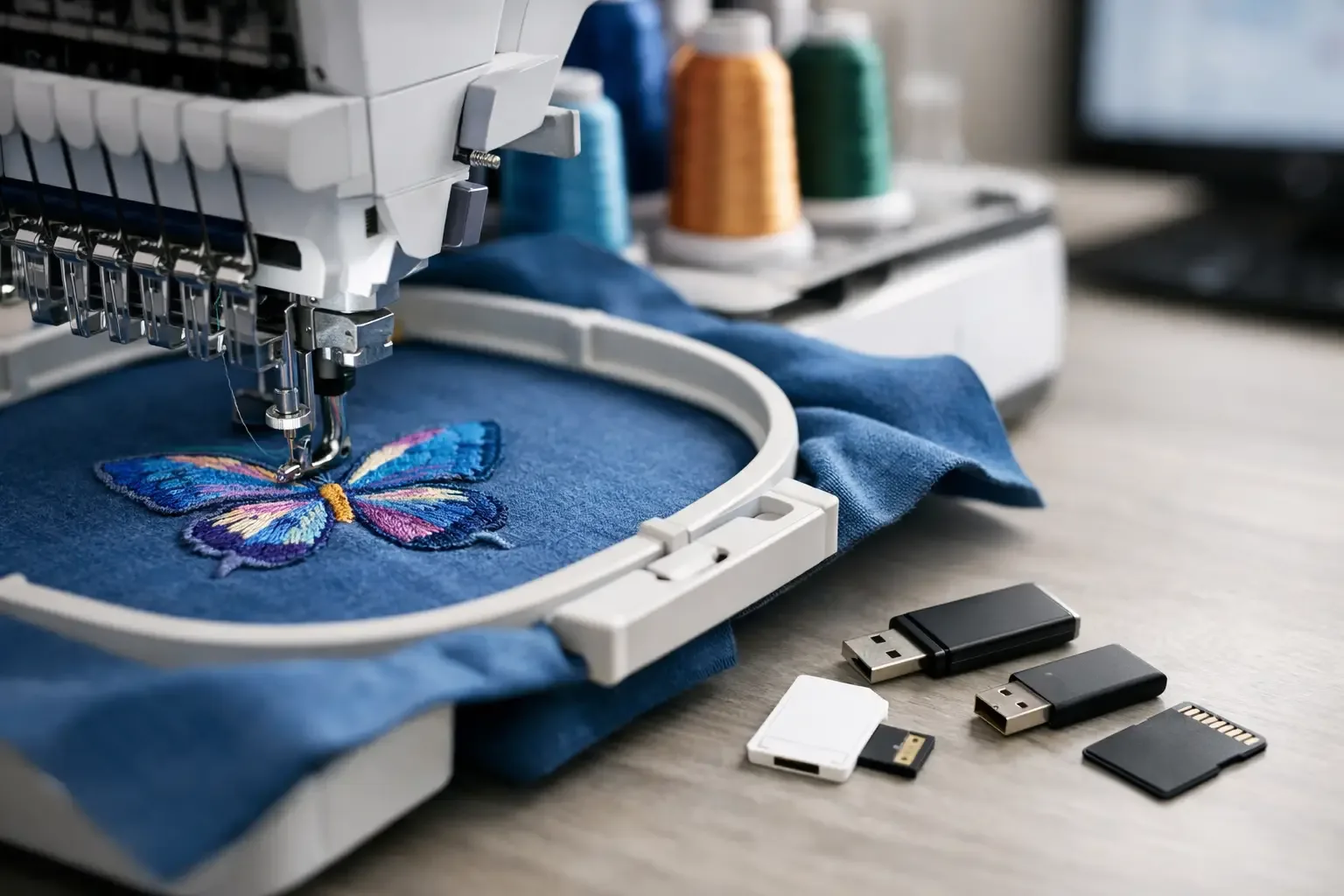
Once you have downloaded a PES design, the next steps are straightforward. Save the original ZIP download in a folder you can find later. Then extract or unzip the files before moving the PES file to your embroidery machine. Many beginners run into trouble because they copy the ZIP folder directly to a USB drive. The machine needs the extracted embroidery file, not the compressed download folder.
Use a clean USB drive formatted in a way your Brother model supports, commonly FAT32. Place the PES file where your machine can locate it easily. Some machines work best when files are stored in the main directory rather than deeply nested in multiple folders. If the design does not appear on the screen, try a smaller USB drive, simplify the file name, and confirm that the PES file has been fully extracted.
File names should be short and clear. Avoid unusual symbols, extremely long names, or duplicate names that make it hard to identify the correct design. A practical name such as BaseballMom_4x4.pes tells you the theme and size before you load it.
After opening the design on your Brother screen, check the dimensions and rotate or move it as needed. Confirm the thread color sequence against the included color chart or product notes. Your machine may display color blocks differently from the exact thread brand you use, so treat the screen colors as a useful guide rather than an absolute match.
Choosing the Right Design Size Matters More Than Many Makers Expect
File format gets the design into the machine. Proper sizing helps it stitch well. Do not dramatically enlarge or shrink a PES design from the machine screen unless the design seller specifically states that resizing is appropriate. Stitch files are digitized for a particular size, density, and underlay structure.
If you enlarge a small filled design too much, you may create gaps between stitches. If you shrink it too far, the stitches can become crowded, causing puckering, thread breaks, or stiff fabric. Small changes may be acceptable, but significant resizing is best handled through embroidery software by someone who understands digitizing.
This matters when choosing designs for caps, sleeves, onesies, pockets, patches, and left-chest placements. Measure the available embroidery area before shopping. A design can look perfect online yet be too large for the garment section you planned to use.
For custom apparel makers, build a simple reference list of your most-used hoop sizes and placement limits. Include your 4 x 4 hoop, 5 x 7 hoop, cap frame area if applicable, and common shirt placements. It makes browsing a large design catalog much faster, especially when customers need a last-minute gift or game-day item.
PES Files for Sports, Fandom, Gifts, and Small-Business Orders
PES gives Brother owners access to a huge range of ready-to-stitch projects. A single machine can personalize sweatshirts with mascot-inspired artwork, create monogrammed backpacks, stitch anime-themed patches, decorate holiday kitchen towels, or add a name to a child's birthday shirt.
The best design choice depends on the fabric and purpose. Dense designs suit stable fabrics such as twill, canvas, denim, and structured sweatshirts. Lightweight T-shirts, polos, and baby clothes need appropriate stabilizer and designs that are not overly dense for the garment. Towels often benefit from a topper so stitches do not sink into the pile.
Embroidery n Sewing offers downloadable designs across high-demand themes, making it easier to match the project to the person receiving it. Select PES, verify the hoop size, and review the design details before checkout. That small amount of preparation is the difference between a quick, satisfying stitch-out and an avoidable restart.
Quick Troubleshooting When a PES File Will Not Load
If a PES file does not show up on your Brother machine, start with the basics. Confirm that it is a real .pes file and not a ZIP folder, image preview, PDF instruction sheet, or a format intended for another machine brand. Check that the file size and design dimensions fall within your machine's limits.
Next, try loading one known-good PES design from a different USB drive. If that file works, the issue may be with the original download, file name, folder structure, or design size. If no designs load, review your USB formatting and your machine's manual for media requirements.
Do not assume the problem is the design simply because the machine cannot read it immediately. A full USB drive, unsupported folder location, damaged download, or oversized design can all create the same frustrating result.
PES is the practical answer for Brother owners, but a successful project also comes down to hoop size, fabric choice, stabilizer, and a design made for the placement you have in mind. Choose the PES file that fits your machine and your project, then let the stitching bring the idea to life.


